 Some of our services are using video or phone appointments.
If your health professional thinks you need a face-to-face appointment in person they will organise this for you.
To get the best out of your video appointment, please remember the following:
- Make sure you’re in a private space, if possible.
- Don't sit with a window behind you because you will be in shadow.
- Make sure your computer or laptop is connected to wifi and is fully charged.
- If there are more than two people on the call, put your microphone on 'mute' when you're not speaking.
- Sit close to the screen or camera.
- If you are using a phone or tablet for your appointment, prior to the call starting, adjust your phone settings to ‘do not disturb’.
At the moment we are using a variety of systems (Microsoft Teams, WhatsApp and AccuRx) for video appointments. There is no need to create an account. No information about you is stored on the video system. Please see instructions for each system below.
Make sure your phone or laptop software is up-to-date before your appointment.
System guides
We can provide advice to you via AccuRX. AccuRX is a very secure system developed for use by the NHS.
You can use AccuRX on your mobile phone.
You don’t need to download an app or create an account.
Your call is confidential and cannot be viewed by anyone else.
If you would prefer a different type of appointment, please let us know.
If you are happy to proceed with the AccuRX appointment the team will ask for your consent and will record this in your notes.
Your AccuRX appointment is treated in the same way as a face-to-face appointment:
- All your sensitive/confidential information is treated and stored securely.
- Your appointment is booked and documented in the same way.
- The appointment will not be recorded.
Setting up a video call
You will be contacted by a member of the team to book the video appointment.
To make sure you are able to use this system you need to use the most up-to-date version of Chrome, Firefox or Safari on your mobile phone and you need to allow your web browser to access your phone camera and mic.
- You will be sent a text message or email with a web link which you need to click on. The link will allow you to join the live video consultation screen.
- Click on I accept to continue.
- Click on Request permissions.
- Click on Allow.
- You may see a Cannot access camera or microphone message. If this appears, instead of the above the device has blocked access to some applications and you will need to go into camera and microphone settings and allow access to continue.
- Click Join meeting to enter the room.
- You have now entered the room and the clinician knows you are waiting. They will appear in the lower half of the screen. You do not need to share the link. Your mic and camera are on.
- If your camera and microphone buttons are red and/or have a line through them, you will need to tap them to turn them on.
- The meeting has now started.
- To remove yourself from the screen tap the three dots on the clinician half of the screen and a menu will appear, tap on the full screen option on the menu. The clinician will now be full screen which can be less distracting during the appointment. You can also adjust the volume here as well as on your device.
- When the consultation is over click the leave icon (red door) at the bottom of the screen.
The clinician is able to see your progress and that you have joined, they will then join the call. If you are experiencing any difficulties you will be called.
Your health professional can provide advice to you via Microsoft Teams (MS Teams) video calling.
Someone from the team will arrange the MS Teams call with you. If you would prefer a different type of appointment, please let us know.
You will need to give us your email address; this will not be stored or used in anyway other than for the MS Teams call.
Your Microsoft Team appointment is treated in the same way as a face-to-face appointment:
- All your sensitive/confidential information is treated and stored securely.
- Your appointment is booked and documented in the same way.
- The appointment will not be recorded.
Receiving a Microsoft Team’s call
- Get set up at least 15 minutes before the start of the appointment.
- If using a webcam, check it is set up and connected, and that you are connected to the internet.
- Make yourself comfortable in a quiet place where you will not be overheard or disturbed.
- You will find the appointment details in your email inbox (or calendar).
- Click on Join Microsoft Team’s Meeting.
How to download or open Teams on your devices
Watch a video guide on installing or opening Microsoft Teams on your device.
How to join a Teams call
You can join a session from any device, whether or not you have a Teams account. If you don't have an account, follow these steps to join as a guest.
- Go to the meeting invite that was emailed to you and click on the link ‘Join Microsoft Teams Meeting’.

That'll open a web page, where you'll see two choices: Download the Windows app or Join on the web instead. If you join on the web, you can use either Microsoft Edge or Google Chrome.
- Your browser may ask if it's okay for Teams to use your mic and camera. Be sure to allow it so you'll be seen and heard in your meeting.
- Choose your audio and video settings. Select Phone audio if you want to listen to the meeting on your mobile phone.
- Next, you'll be given two options for joining your meeting: Join as a guest or Sign in and join. Choose Join as a guest.

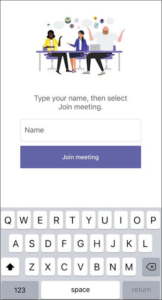
- Type your name and tap Join meeting.
This will bring you into the meeting lobby. We'll notify the meeting organizer that you're there, and someone in the meeting can then admit you.
Please note: If no one admits you to the meeting within 15 minutes, you'll be removed from the lobby. If that happens, you can try joining again.
Using Teams tips
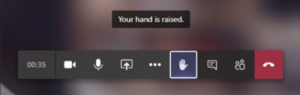
Video camera icon - Its always nice to see you when you join the meeting. Although not compulsory we ask that you keep your camera on for the duration of the session in able to get the most from the training and so you are able to engage with both ourselves and other participants.
Microphone icon - once you have joined and said hello would you mind muting so that we all don’t hear your background noise.
It is really important that we communicate so there are a few ways we can do this.
The hand icon - if you’d like to ask a question please use this icon to raise your hand. In smaller groups we always like to encourage open conversations however in larger groups sometimes this can be difficult to facilitate and therefore we may request you raise your hands when asking a question.
We request that you try not to take control of the presentation. This becomes very frustration for everyone as we have to go back to the beginning.
Speech bubble icon - if you have a question please click on this icon which will bring up the meeting chat. You can type a question in the chat that is in relation to that topic these can then be answered at the ends of sections. When there are a lot of questions coming in during the presentation it is very distracting to hear the notification beep.
Turn off chat beep - click on the chat, then click on three dots, then click mute.
Some of our services can support you using WhatsApp video calling.
You will need to provide your mobile phone number.
The health professional will call you using WhatsApp video calling. They will be able to see you and speak to you.
When you are called just swipe the screen up to accept the call. Your call will not be recorded.
Please note that although we can use WhatsApp for video calling we are not able to use it for texting. This is because the information that you provide over text messaging cannot be guaranteed to be secure.
Frequently asked questions
- A good connection to the internet
If you can watch a video online (e.g. YouTube) you can make a video call. - A private, well-lit area where you will not be disturbed during the consultation
- One of these:
- Google Chrome web browser on a desktop or laptop, or on an Android tablet or smartphone (Windows 7+, Android 5.1+, MacOS 10.11+, iPadOS 13+)
- Safari web browser on an Apple Mac, MacBook, iPad, or iPhone (MacOS 10.12+, iOS 11.4+, iPadOS 13+)
- Web-camera, speakers and microphone (usually already built into laptops or mobile devices).
Video calls are secure; your privacy is protected.
You have your own private video room that only authorised clinicians can enter.
You don’t use any data while waiting for a clinician to join you.
A video call uses a similar amount of data to Skype® or FaceTime®.
The video call is free (except for your internet usage).
Smartphone and tablet users
If you can, connect to a home or work Wi-Fi network to avoid using your mobile data allowance.
Need help?
If you have any additional needs that are not covered above, please contact the service.